


Your assistant.
Now on Android.
Keep the conversation going when you step away from your desk. Talk to GearHead, catch up on your day, and put your connected tools to work from your phone.
Installing the APK? View the installation guide ↓
GearHead AI for Android
Google Play
Install from Google Play for regular updates through the store.
Latest version · Direct download
Get the newest GearHead build before it reaches Google Play. Download the APK and install it yourself.
Tap ⋮ at the top right of Chrome, then Downloads.
gearhead-ai-1.5.4-16.apk
Wait for this file to finish (7.73 MB) , then tap it to install.
If Chrome asks you to confirm the download, do that first. Nothing listed? Tap Download again.
Downloading is step one. Open the file and tap Install. Return here for future APK updates.
Choose Google Play if you prefer updates managed through the store.
Open this page on your Android phone to install. An internet connection and an active GearHead account are required. Need an account?
Let’s get you installed.
Open this page in Chrome on your phone. Then choose your phone below.
Google PixelTap for the 4 steps
- Tap “Download latest APK” above.
If Chrome asks, confirm the download. Already downloaded? Go to step 2.
- In Chrome, tap ⋮ → Downloads.
The three dots are at the top right. Wait for
gearhead-ai-1.5.4-16.apkto finish, then tap that file. - If asked, allow Chrome to install it.
Tap Settings on the message. Turn on Allow from this source. Tap your phone’s Back button or use its back gesture.
- Tap Install. Then tap Open.
If the installer didn’t come back, return to Chrome → ⋮ → Downloads and tap the file again. When GearHead opens, sign in.
Can’t find the permission setting?
Open your phone’s Settings → Apps → Special app access → Install unknown apps → Chrome. Turn on Allow from this source. Then return to Chrome’s Downloads and tap the file.
Opened it from Files by Google instead? Allow that app, rather than Chrome.
Samsung GalaxyTap for the 4 steps
- Use Chrome and tap “Download latest APK” above.
If Chrome asks, confirm the download. Already downloaded? Go to step 2.
- In Chrome, tap ⋮ → Downloads.
The three dots are at the top right. Wait for
gearhead-ai-1.5.4-16.apkto finish, then tap that file. - If asked, allow Chrome to install it.
Tap Settings on the message. Turn on the switch for Chrome or Allow from this source. Go back.
- Tap Install. Then tap Open.
If the installer didn’t come back, return to Chrome → ⋮ → Downloads and tap the file again. When GearHead opens, sign in.
Samsung says “Auto Blocker”?
For this download from gearheadai.app, open Settings → Security and privacy → Auto Blocker. Temporarily turn it off and confirm if asked. Return to Chrome’s Downloads, tap the file, and install. Turn Auto Blocker back on afterward.
Can’t find the permission setting?
Open your phone’s Settings. Tap the search icon and type Install unknown apps. Open that result, then enable Chrome.
Opened the download from My Files or Samsung Internet instead? Enable that app.
See Samsung’s permission screen
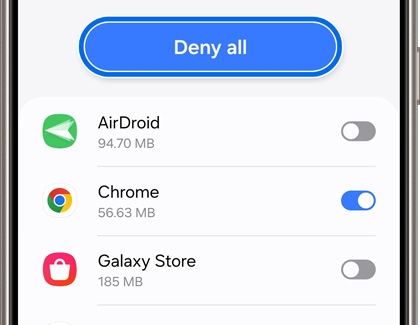
Once installed, you can turn the installation permission off again. Keep Google Play Protect on. If it offers a scan, let it scan; if it reports the app as harmful, stop and contact us.
Before you get going
Which download should I choose?
Choose Google Play for the simplest installation and regular store updates. Choose the direct APK if you want the newest build before it reaches Google Play and are comfortable installing it yourself.
How will I get updates?
For the Google Play version, use Google Play to manage updates. For a direct APK installation, return here for newer builds. Switching between store and direct builds can depend on Android signing and version compatibility. If Android reports a conflict, contact us before uninstalling anything.
What if Android won’t install it?
Make sure the download finished and your phone runs Android 7.0 or later. A work-managed phone may restrict direct installations. If you already have a test build or see a package conflict, contact us before uninstalling anything. You can use GearHead in your browser meanwhile.
The installation window disappears immediately. What should I do?
If the APK has finished downloading and the installation window closes before you can use it, contact us with your phone model, Android version, and a short recording of what happens. This is not a successful installation. Repeatedly changing permissions may not resolve it. Keep Play Protect enabled; you can use GearHead in your browser while we investigate.
Can I use this download on iPhone or iPad?
For iPhone or iPad, download GearHead AI from the App Store. You can also use GearHead in Safari.
Download details
GearHead AI 1.5.4, build 16. Package: com.mediamechanic.gearhead.
SHA-256: 314b399206c77ba47a64ae14c92f31723f9f088b04f605bdc857775db53922dc
On iPhone or iPad? Download GearHead AI on the App Store →