



GearHead is meant to feel like your assistant working inside your business—not a generic profile wrapped around an empty prompt. Customization reaches the workspace, the assistant, and the context it works from: Dashboard templates and modules, personas and voices, knowledge focus, visual themes, structured information about you, your company and clients, memory preferences, connected tools, and account-eligible model choices. Start with the five-step guided setup and refine the deeper options later.
Make your workspace feel like yours
What it does for you
What you can customize.
Persona configuration
Pick a default persona. Configure which persona handles which task type. Tune persona voices, affirmation defaults, and communication style preferences within Account Settings.
Voice selection
Each persona has a real voice (Cartesia + ElevenLabs). Sample each, pick the ones that fit your context. Different voice per persona, different voice for phone agent vs chat.
Theme & appearance
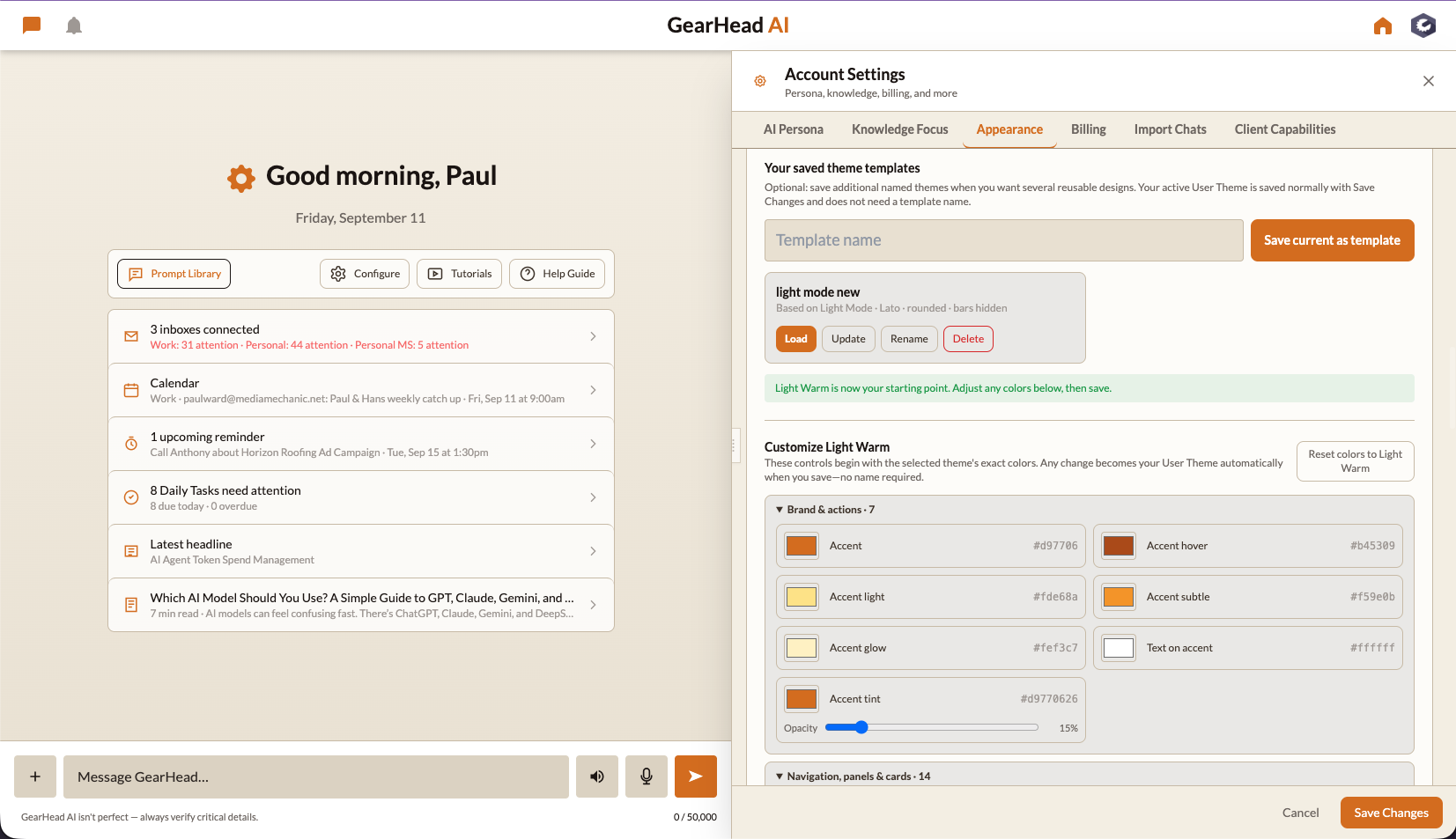
Choose a color template, header and footer treatment, pill or rounded controls, background, typography, and related appearance preferences. Build a custom theme later when a preset is only the starting point.
Dashboard & workspace
Select a starting Dashboard, then configure modules, columns, density, greeting presentation, and independent desktop/mobile behavior. Focused New Chat remains available when you want a simpler conversation-first view.
Knowledge focus & structured context
Choose the areas GearHead should emphasize, then add structured details about you, your responsibilities, company, clients, specializations, and industry so the assistant has better context than a loose biography alone.
Model routing rules
Choose among the models currently eligible for your account, or let GearHead route automatically. The selector is populated from the live registry instead of a fixed roster.
Memory behavior
What to remember automatically vs ask. Which topics to exclude. How long to keep what. Edit and delete memories anytime. Full control over what GearHead retains.
Autonomous vs confirm
Decide what GearHead does automatically vs what requires your approval. File emails: auto. Send replies: confirm. Push to CRM: auto. Generate invoices: confirm. Tune per integration.
Confidential Mode
Owners and admins can permanently restrict an account to its approved provider and model roster for legal confidentiality and healthcare workflows that need HIPAA-aligned safeguards. The guarded mode applies across chat, routing, memory utilities, jobs, media, and voice fallbacks; it can limit media options and does not by itself include a signed BAA or claim HIPAA certification.
From setup to running in minutes
Guided setup
Choose a starting persona and voice, knowledge focus, visual style, and Dashboard default. Launch quickly, then build a custom persona or theme later in Account Settings.
Refine over time
As you use the system, refine. Tweak persona behavior. Adjust autonomous-vs-confirm rules. Add or remove integrations. Tune what gets remembered.
Configure for the team
On Teams, admins set defaults for the team. Individual members can override their personal defaults within admin-set boundaries.
Save preferences
Settings export available. Move your config across accounts. Useful for Framework customers who run multiple environments.
Who's using Customize GearHead
Personal preferences tuned tight
Consultant configures: GearHead persona, default voice, dark theme, autonomous email triage, confirm-before-send for client comms, exclude personal memories from work memory. Daily flow matches exactly how she wants to work.
Practice-wide defaults
Practice admin sets clinical staff to Nicole persona, front-desk to Kathy persona. Phone agent uses Nicole-voice. Clinical memory scoped to clinical staff only. Everyone in the practice operates with consistent defaults.
Per-client customization
Agency runs 15 clients, each with their own brand voice, content rules, and persona assignment. Customization applied per client account. Designers and writers see the right context for the client they're working on.
Field-vs-office tuning
GC sets field techs to Anthony persona with confirm-mode for everything (avoids accidental customer-facing actions). Office team gets GearHead persona with autonomous-mode for routine tasks. One platform, two operating contexts.

Make GearHead yours.
Book a walkthrough, we'll show the full settings area and help you scope what to customize first.